
To enable accurate ROI tracking on your admissions and enrollment marketing campaigns, Tassel requires secure access to your FACTS SIS account. This guide outlines the steps for creating and configuring a user with the necessary permissions.
You may want to consider an alternative method if you would like to manage the delivery of the ROI files directly to Tassel: Providing FACTS Data Files for ROI Reporting.
Step 1: Create a New User in FACTS #
You’ll need to invite Tassel with the following email address:
To manage users and logins in FACTS, refer to this guide from FACTS: Manage Logins with MFA
Step 2: Assign Admissions Permissions #
The user will need access to specific Admissions-related screens to export files for marketing ROI analysis. These permissions should be added under the Admissions security group.
Please refer to the table below for the recommended permission set for the Admissions category:
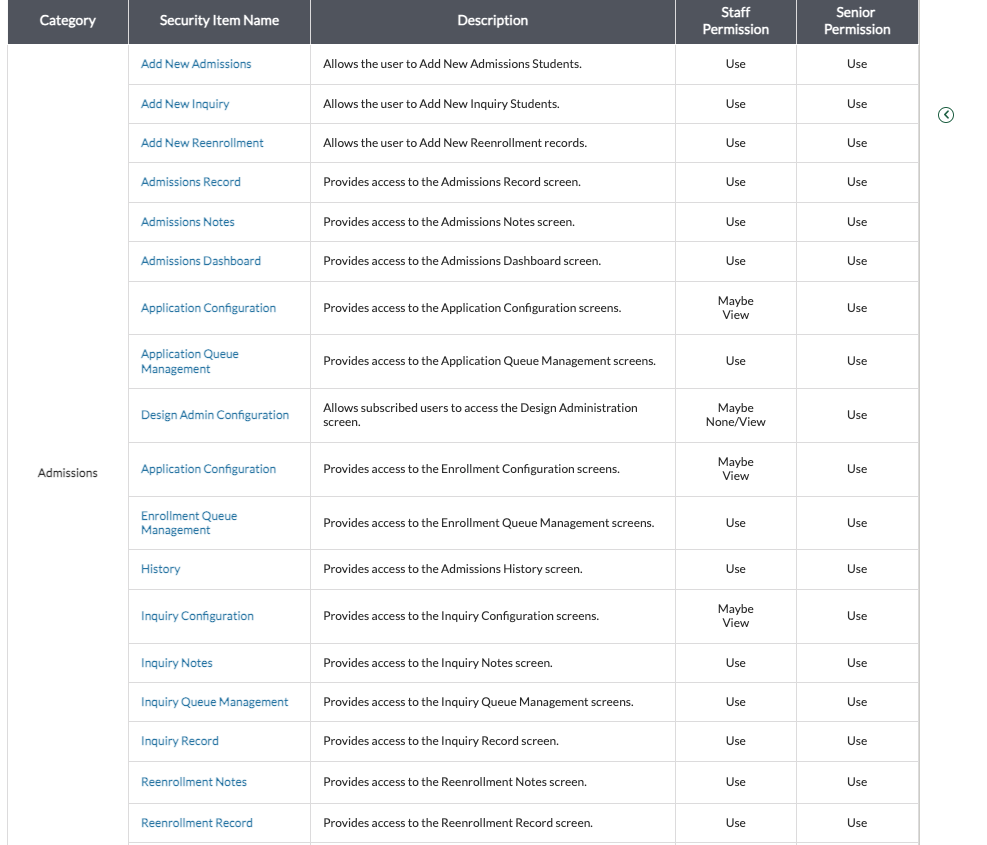
Or view the official FACTS documentation here: Recommended Admissions Permissions
Key Permissions #
Once the user is created and permissions are configured, please send the following information to your Tassel education marketing manager or to helpdesk@tasselmarketing.com:
Need Help? #
If you’re unsure how to create the user or assign permissions, FACTS support is available to help. You can contact them directly to request assistance in:


